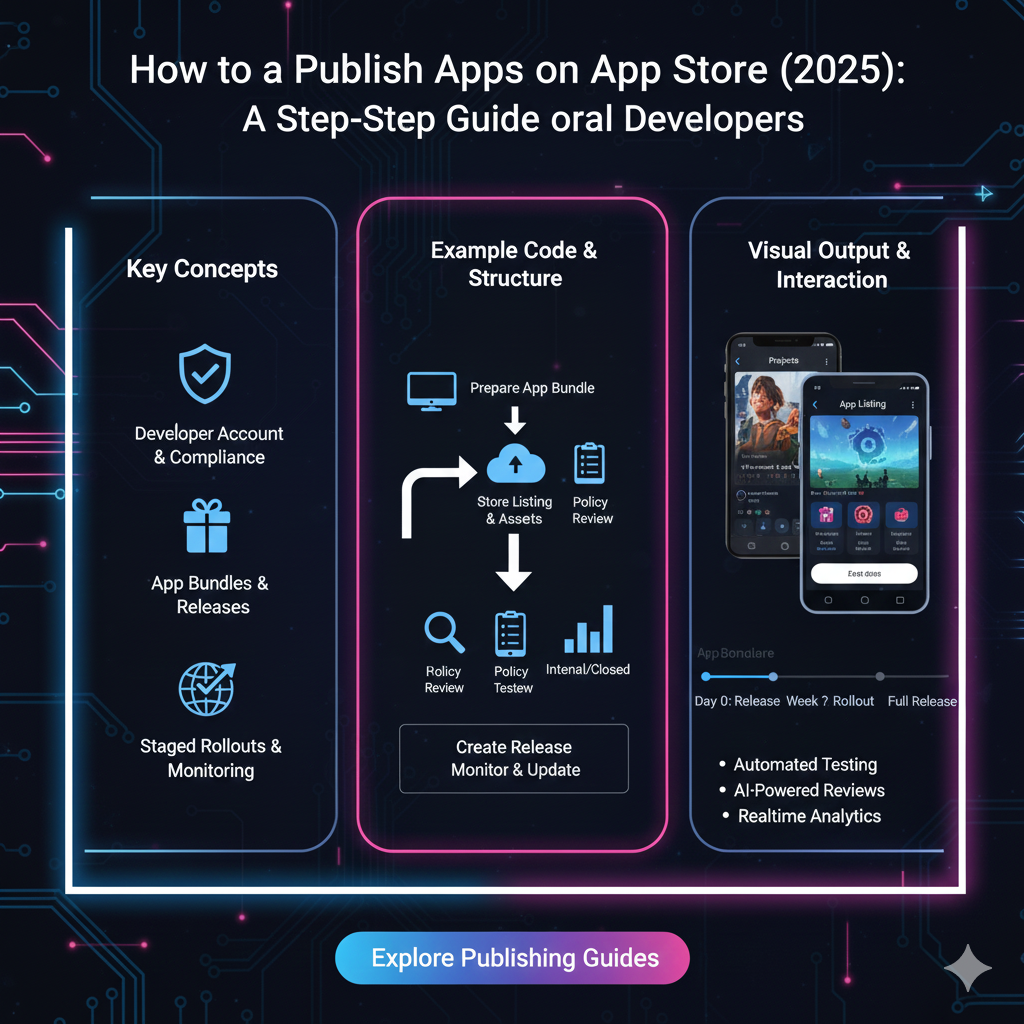
Dreaming of launching your app? Our 2025 guide breaks down the entire App Store submission process, from Apple Developer account to approval, with pro tips to avoid rejection. Level up your skills with Codercrafter!
How to Publish an App on the App Store (2025): From Zero to "Live"
So, you've done it. You've spent countless hours, fueled by coffee and a killer idea, and you've finally built an app. It's sleek, it's functional, and you're convinced it's the next big thing. But now comes the real challenge: getting it past the gatekeepers and into the hands of millions on the Apple App Store.
Let's be real, the App Store submission process can feel like a secret society. The guidelines are dense, the rejection reasons can be cryptic, and one small mistake can set you back weeks.
But breathe. This isn't a mystery novel. This is your straight-talking, no-fluff, 2025 guide to navigating the App Store submission process like a pro. We're breaking it down, step-by-step, so you can go from code to launch without pulling your hair out.
First Things First: The Non-Negotiables
Before you even think about the "Upload" button, you need to have your basics locked down. Think of this as gathering your ID and tickets before a flight.
An Apple Developer Account: This is your golden ticket. It costs $99 USD per year (or the equivalent in your local currency). There are no two ways about it. This account gives you access to App Store Connect, beta testing tools, and advanced app capabilities. Pro Tip: If you're a student, check out the Apple Developer Program for students—it might save you that fee.
A Finished, Tested App: I mean really tested. Not just "it works on my phone" tested. Test it on different device sizes, with poor network conditions, and try to break it. A buggy app is the fastest way to a rejection.
A Mac with Xcode: Xcode is Apple's IDE (Integrated Development Environment). It's where you'll finalize your app's build, configure its settings, and ultimately upload it to the App Store. You can't do this on a Windows machine (unless you use a cloud-based Mac service).
The Step-by-Step Walkthrough: Your Roadmap to "Live"
Alright, let's get into the nitty-gritty. Follow these steps in order.
Step 1: Prep Your App in Xcode
This is where you turn your project into a shippable product.
Configure Version & Build Numbers: In Xcode, under your target's "General" tab, set your Version (e.g., 1.0.0) for public releases and your Build number (e.g., 1, 2, 3) for each unique upload. This helps you track iterations.
App Icons & Screenshots: This is your app's first impression. You need a full set of App Store Connect compliant icons (in multiple sizes) and stunning screenshots for all supported device types (iPhone, iPad, etc.). Don't just use generic screen grabs; create marketing-focused images that show off your app's best features.
App Store Connect Configuration: In your project's settings, under "Signing & Capabilities," ensure your bundle identifier is registered in your Apple Developer account. You'll also need to create an "App Store Connect" record for your app, which links your Xcode project to the store listing.
Step 2: Master App Store Connect
This is your app's backend dashboard. Log in to appstoreconnect.apple.com.
Create a New App: Click the "+" button and select "New App." You'll need to:
Platform: Select iOS, iPadOS, etc.
Name: The name you want displayed on the App Store (up to 30 characters).
Primary Language: The default language for your store listing.
Bundle ID: Select the one you created and linked in Xcode.
SKU: A unique identifier for you, not visible to users (e.g., "myapp-2025-ios").
User Access: If you're working with a team, you can grant them access here.
Step 3: The Product Page is Your Storefront
This is what users see. Make it count.
App Description: Don't just list features. Tell a story. What problem does your app solve? Who is it for? Use keywords naturally in the first few lines. This is your hook!
Keywords: You get 100 characters. Be strategic. Think about what your target user would type into the search bar. Don't repeat words from your app name or use competitor names.
Promotional Text: This is a golden field. You can update it without submitting a new app version. Use it for promotions, new features, or time-sensitive messages.
Support URL: This is mandatory. Have a working website or a helpdesk page. A privacy policy URL is also mandatory as of 2025.
Step 4: The Dreaded App Review Questionnaire
Apple has gotten more serious about privacy and data. You'll be presented with a questionnaire about your app's data practices. Be brutally honest here. Misrepresenting your data collection is a guaranteed rejection. They'll ask if you use encryption, what data you collect, and how you use third-party code.
Step 5: Upload and Submit for Review
Back in Xcode, select "Any iOS Device" as your build target, then go to Product > Archive. Once the archive is created, the Xcode Organizer window will open. Click "Distribute App," follow the steps, and select "App Store Connect." After uploading, you'll go back to App Store Connect.
In App Store Connect, find your app's "Build" section and select the version you just uploaded. Finally, click "Submit for Review."
Real-World Use Case: "Mindful Minutes"
Let's make this real. Imagine you built "Mindful Minutes," a meditation app.
In App Store Connect, your description wouldn't just say "Has 10 meditations." It would say: "Stressed? Overwhelmed? Mindful Minutes is your 5-minute daily escape. With guided sessions from world-class instructors, find your calm and crush your goals. Perfect for busy students and professionals."
Your Keywords might be:
meditation, mindfulness, calm, anxiety, sleep, focus, wellness.During the App Review, you'd truthfully answer the questionnaire: "Yes, we collect anonymized usage data to improve the app experience. We do not sell data to third parties." You'd also provide a clear link to your privacy policy explaining this.
Best Practices to Avoid the "Rejected" Stamp
This is the stuff they don't always tell you.
TestFlight is Your Best Friend: Use Apple's TestFlight to beta test your app with external users before submission. It catches so many bugs and UX issues.
Demo Account for Reviewers: If your app has a login, provide a demo account username and password in the "App Review Information" section. Make it super easy for them to see all the features.
Follow the Guidelines, Not Just the Rules: Read the App Store Review Guidelines. Pay special attention to sections on safety, performance, business, and design. In 2025, Apple is particularly strict on user privacy (tracking transparency) and ensuring apps provide a high-quality, functional experience.
Metadata Matters: A sloppy product page with spelling mistakes or placeholder text signals a low-quality app. Be professional.
Building a robust app that can pass this rigorous process requires a strong foundation in software development. To learn professional software development courses such as Python Programming, Full Stack Development, and MERN Stack, visit and enroll today at codercrafter.in. Our industry-aligned curriculum is designed to turn you into a job-ready developer.
FAQs: Your Burning Questions, Answered
Q1: How long does the App Review process take?
A: It varies. It can be as quick as 24 hours or take several days. Plan for at least 48-72 hours. Major updates around iOS launches can see longer delays.
Q2: My app got rejected! What now?
A: Don't panic. Apple will send a detailed message via App Store Connect explaining exactly why. It's often a simple fix—a broken link, a missing demo account, or a guideline you misinterpreted. Address the issue and resubmit.
Q3: Can I publish a free app?
A: Absolutely! The $99/year developer fee is the only mandatory cost. You can have a free app with no in-app purchases, a paid app, or a free app with in-app purchases.
Q4: What's the difference between "Reject" and "Metadata Reject"?
A: A Metadata Reject means your app binary is fine, but something on your product page (screenshots, description, etc.) is wrong. You can fix this without uploading a new build. A full Reject means there's an issue with the app itself, requiring a new upload.
Q5: Do I need to be a coding expert to do this?
A: You need to have built a functional app, which requires development skills. The submission process itself is more about following instructions and attention to detail. However, the ability to fix bugs and implement changes based on feedback is crucial.
Conclusion: You've Got This
Publishing an app on the App Store is a milestone. It's a process that demands patience, precision, and a deep understanding of both your product and the platform's rules. It might feel daunting, but by breaking it down into these manageable steps, you're not just guessing—you're executing a plan.
Remember, the goal isn't just to get an app "live." It's to launch a high-quality, valuable product that people will love and that Apple is proud to host. So, polish your metadata, double-check your build, and hit that submit button with confidence.
Your app deserves to be seen. Now go make it happen.
Ready to build the app you've been dreaming of? The journey starts with solid coding fundamentals. At codercrafter.in, we offer project-based learning in cutting-edge technologies to help you build, deploy, and launch your ideas. Check out our courses and start your developer journey today!