Material Design 3 in React Native: A 2025 Guide to Material You
Learn how to implement Material Design 3 (Material You) in React Native with React Native Paper. This in-depth guide covers setup, theming, components, and best practices to build modern Android apps.
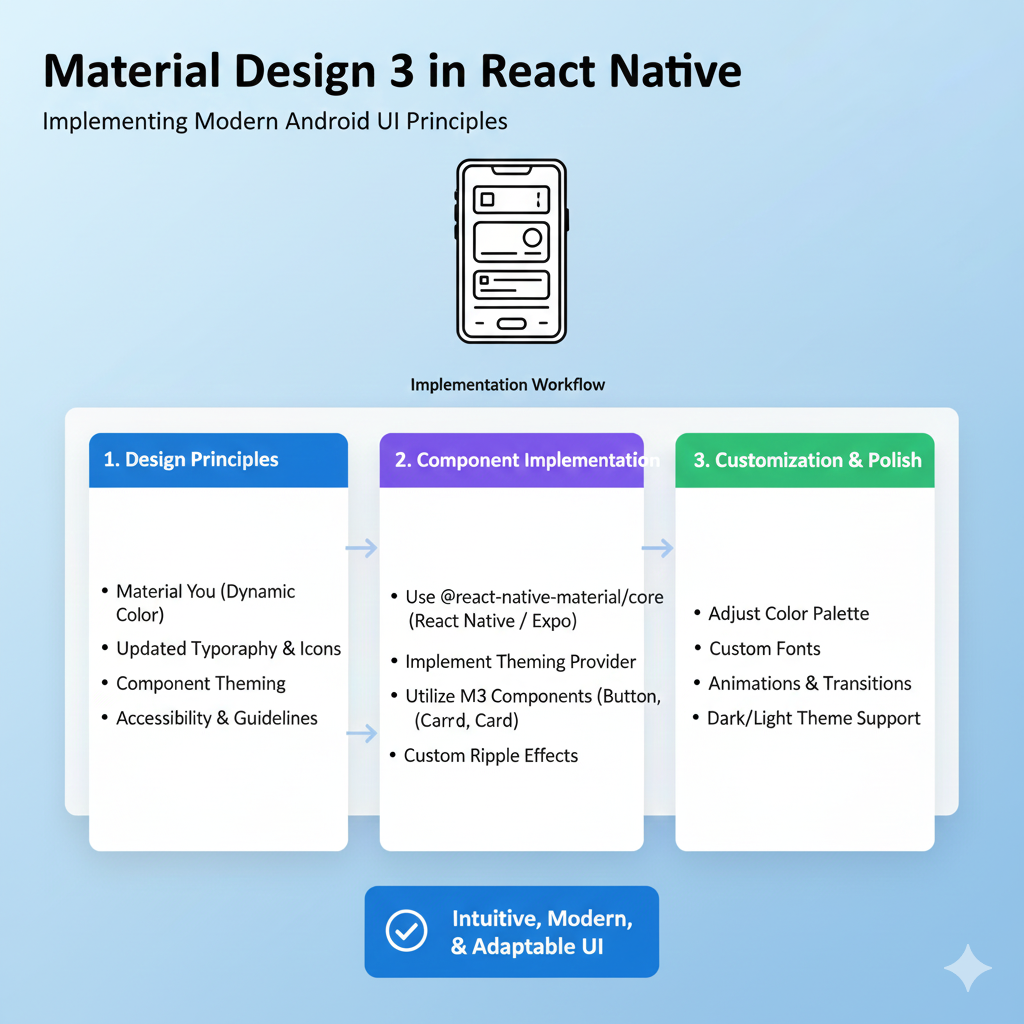
Ever open an Android app and think, “Wow, this just feels right”? That seamless, polished, and intuitively responsive experience is often the work of Material Design, Google’s design system. The latest evolution, Material Design 3 (MD3), also known as Material You, takes this a step further by introducing more personalization, dynamic color, and a wonderfully expressive aesthetic.
If you're building React Native apps and want them to look and feel native on modern Android devices, adopting MD3 isn't just a nice-to-have—it's becoming essential. This guide will walk you through why MD3 matters and exactly how to implement it in your React Native projects.
What is Material Design 3 (Material You)?
Material Design 3 is the most significant visual overhaul of Google's design language in years. Moving beyond the somewhat flat aesthetic of Material Design 2, MD3 embraces personalization, adaptability, and expressive visuals.
Think about the apps on a Pixel phone: the colors can subtly adapt to your wallpaper, components have more pronounced and playful shapes, and interactions feel more tactile. This is MD3 in action. It’s not just about new colors; it's a whole new system built on design tokens for color, typography, and shape that creates a cohesive, accessible, and dynamic user interface.
For developers, this means apps can better integrate with the operating system's look and feel, especially on Android 12 and above. Ignoring these shifts can make your app feel outdated next to native system apps.
Why Use Material Design 3 in React Native?
You might wonder if going through a design overhaul is worth it. Here’s why it is:
Native Feel & User Expectations: Modern Android users expect apps that match the system's dynamic theming and smooth gestures. Using MD3 meets this expectation, making your hybrid React Native app feel truly native.
Built-in Accessibility & Consistency: The MD3 system is built with contrast ratios, clear typography scales, and meaningful motion in mind. By using its tokens, you bake accessibility and visual consistency directly into your app.
Future-Proofing: As Google continues to push Material You across its ecosystem, aligning with MD3 ensures your app remains compatible with future Android updates and Play Store guidelines.
Faster Development: Instead of building every button, card, and menu from scratch, you can leverage libraries that implement MD3 components, ensuring they work correctly across platforms and saving you countless development hours.
Your Toolkit: Implementing MD3 with React Native Paper
The most straightforward and powerful way to bring MD3 to React Native is by using the React Native Paper library, which officially supports Material You as of its version 5.
Step 1: Installation
First, add React Native Paper and its required peer dependency to your project:
bash
npm install react-native-paper react-native-safe-area-context
# For iOS, don't forget to install pods
cd ios && npx pod-install
Step 2: Setting Up the Theme Provider
Wrap your root component with the PaperProvider. This is what makes the theme available throughout your app. By default, it applies the MD3 theme.
javascript
import * as React from 'react';
import { PaperProvider } from 'react-native-paper';
import App from './src/App';

export default function Main() {
  return (
    <PaperProvider>
      <App />
    </PaperProvider>
  );
}
Step 3: Understanding MD3 Theming
The magic of MD3 in React Native Paper lies in its comprehensive theme object. Here are the core pillars:
Colors: MD3 introduces a structured color system with semantic names (not just
primaryorsecondary). You now haveprimaryContainer,surfaceVariant,onSurface, and more, which automatically ensure proper contrast.Typography: Gone are individual components like
<Headline>and<Paragraph>. MD3 uses a single<Text>component with avariantprop (e.g.,displayLarge,titleMedium,bodySmall) for a consistent type scale.Shape: The
roundnessproperty in your theme controls the curvature of buttons, cards, and other elements globally, giving your app its unique character.
Here’s a look at a basic custom MD3 theme:
javascript
import { MD3LightTheme, configureFonts } from 'react-native-paper';

const myCustomTheme = {
  ...MD3LightTheme,
  roundness: 12,
  colors: {
    ...MD3LightTheme.colors,
    primary: '#0061a4',
    secondary: '#c2185b',
  },
  // You can customize fonts here
  fonts: configureFonts({ config: { fontFamily: 'Your-Custom-Font' } }),
};
// Then pass this theme to <PaperProvider theme={myCustomTheme}>
Step 4: Using Components the MD3 Way
With the theme set, using components is intuitive. They will automatically adopt your theme's colors, shapes, and typography.
javascript
import { Button, Card, Text, useTheme } from 'react-native-paper';

const MyScreen = () => {
  const theme = useTheme(); // Access the theme anywhere

  return (
    <Card style={{ margin: 16, backgroundColor: theme.colors.surfaceVariant }}>
      <Card.Content>
        <Text variant="titleLarge">MD3 Card Title</Text>
        <Text variant="bodyMedium">This card uses the new surfaceVariant color.</Text>
      </Card.Content>
      <Card.Actions>
        <Button mode="contained" onPress={() => {}}>
          Contained Button
        </Button>
        <Button mode="outlined" onPress={() => {}}>
          Outlined Button
        </Button>
      </Card.Actions>
    </Card>
  );
};
Pro Tip: To truly master these implementations and understand the architecture behind robust mobile apps, deepening your React Native knowledge is key. For those looking to level up professionally, structured learning can fast-track your skills. To learn professional software development courses such as Python Programming, Full Stack Development, and MERN Stack, visit and enroll today at codercrafter.in.
Best Practices and Common Pitfalls
Jumping into MD3 is exciting, but watch out for these common mistakes to ensure a smooth transition:
Don't Mix MD2 and MD3: The biggest source of visual inconsistency is mixing components or styles from different design systems. React Native Paper's
themeobject has aversionproperty (2or3)—stick to one.Use Design Tokens, Not Hard-Coded Values: Always reference
theme.colors.primaryinstead of hardcoding#0061a4. This ensures your app respects dark mode and any future theme changes.Prioritize Adaptive Layouts: With MD3's expressive shapes and dynamic typography, ensure your layouts are flexible. Test with large system font sizes to prevent text from breaking your UI.
Handle Dynamic Colors (Where Possible): The pinnacle of MD3 is dynamic color extraction from the user's wallpaper. While full support in React Native is still evolving, you can prepare by structuring your theme to swap pre-defined color palettes based on user preference.
Real-World Use Case: A Modern Task Manager App
Imagine building a task manager. With MD2, you might have a list of flat cards. With MD3 in React Native Paper, you can elevate it:
Visual Hierarchy: Use
surfaceVariantfor the main card background andprimaryContainerfor a high-priority task card, creating clear visual importance.Expressive Interaction: The
Buttoncomponent comes with built-in ripple effects. Use aFAB(Floating Action Button) with a"primary"color for the main "Add Task" action.Organized Navigation: Implement a
BottomNavigationbar with MD3's updated icons, where the active tab icon elegantly fills in.Feedback: Use a
Snackbarwith anelevationprop to confirm a task was deleted, making it float subtly above the UI.
This approach transforms a functional app into a delightful product that users enjoy interacting with.
FAQ: Material Design 3 in React Native
Can I use Material Design 3 for iOS apps built with React Native?
Yes, absolutely. React Native Paper's MD3 components work on iOS. However, the "Material You" personalization features are an Android-specific system. On iOS, the app will use your beautifully crafted static theme, which still provides a consistent and professional look across both platforms.
Is it mandatory to use React Native Paper for MD3?
While it's the most complete and popular solution, it's not mandatory. You could, in theory, build your own component library using MD3 design tokens. However, given the complexity, using a well-maintained library like React Native Paper is strongly recommended for efficiency and reliability.
How do I migrate an existing app from Material Design 2 to MD3?
React Native Paper makes this relatively straightforward. Start by updating to version 5+ and setting your theme's version to 3. Then, go through a component audit:
Replace old typography components (
<Headline>,<Paragraph>) with the new<Text variant="...">.Update color references from generic names to MD3's semantic names (e.g., from
backgroundtosurfaceorprimarytoprimaryContainerwhere appropriate).Test thoroughly, especially for layout shifts due to new typography sizes and component shapes.
Conclusion
Material Design 3 represents the future of Android UI, emphasizing personalization, expressiveness, and smart adaptability. For React Native developers, integrating MD3 through libraries like React Native Paper is a strategic move that elevates your app's quality, aligns it with modern user expectations, and streamlines development.
Start by theming a single screen. Wrap your app in a PaperProvider, create a custom theme object, and replace one old component. You'll quickly see how these small changes add up to create a significantly more polished and professional application. The tools are powerful and accessible—now is the perfect time to build something that not only works great but looks and feels exceptional.









