React Native Core Components: The Ultimate Guide for Mobile Developers
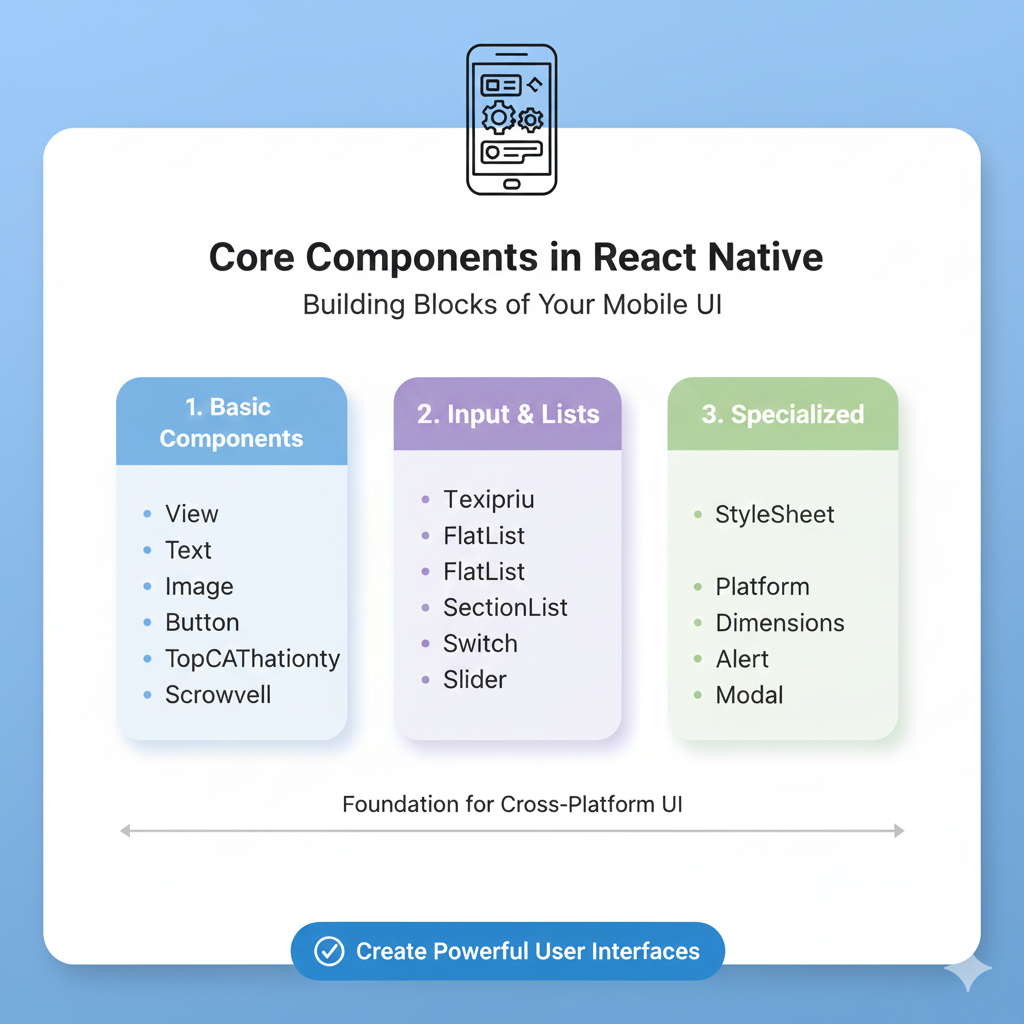
Master React Native's core components like View, Text, and FlatList. Learn how to build truly native iOS/Android apps with JavaScript. Includes examples, best practices & FAQs. Enroll in professional software development courses at CoderCrafter.
Forget web-to-mobile compromises. Discover how React Native's building blocks let you write JavaScript that renders to real native iOS and Android UIs.
So, you want to build mobile apps? Let me guess—you're a web developer eyeing the massive mobile market, tired of hearing "you need to learn Swift and Kotlin," or maybe you're just starting out and the fractured native landscape seems... overwhelming. What if you could use the JavaScript and React skills you already have to create apps that feel truly native on both iOS and Android?
Welcome to React Native. It’s not a "web view in an app" wrapper. It’s a framework where the <View> component you write in JavaScript becomes an actual iOS UIView or Android ViewGroup at runtime. This means performance and user experience that are indistinguishable from apps built the traditional way. Thousands of companies, from Meta and Microsoft to Shopify and Amazon, use it to power their flagship apps.
The magic that makes this "Learn Once, Write Anywhere" philosophy possible lies in Core Components. They are your toolkit's essentials. This guide will break them down, show you how to use them, and share the best practices straight from the industry trenches. To master professional software development with frameworks like React Native, along with foundational skills in Python Programming, Full Stack Development, and MERN Stack, consider visiting and enrolling in structured courses at codercrafter.in.
What Are Core & Native Components? The Bridge Explained
Before we dive into the components themselves, let's clear up a crucial concept. In mobile development, everything you see is built from views—basic rectangular UI elements that display text, images, or handle touch.
Native Components are the platform's raw materials. On iOS, they're
UIView,UITextView, etc., written in Swift/Objective-C. On Android, they'reViewGroup,TextView, etc., written in Kotlin/Java.React Native Core Components are the JavaScript/React "wrappers" for these native building blocks. When you write
<Text>Hello</Text>in your code, React Native communicates with the underlying platform and creates a genuine nativeTextVieworUITextViewto display it. This is the core architectural magic.
React Native Component | Android Native View | iOS Native View | Web Analog | Purpose |
|---|---|---|---|---|
|
|
|
| The ultimate container for layout and style. |
|
|
|
| Displays and styles text, even nested. |
|
|
|
| Displays images from the web or local assets. |
|
|
| Scrollable | A scrollable container (renders all children at once). |
|
|
| `<input type="text">** | The field for user text input. |
Your Essential Toolkit: 5 Must-Know Core Components in Action
Let's move from theory to practice. You'll use these five components in almost every screen you build.
1. <View>: The Layout Powerhouse
Think of <View> as your universal <div>. It's a container used for layout, styling, and grouping other components. It supports Flexbox by default, making complex layouts a breeze.
javascript
import { View, Text } from 'react-native';

function App() {
  return (
    {/* A container centered on the screen */}
    <View style={{ flex: 1, justifyContent: 'center', alignItems: 'center', backgroundColor: 'white' }}>
      <Text>Hello, world! 👋</Text>
    </View>
  );
}
The flex: 1 style is key—it tells this View to take up all available space. justifyContent and alignItems center its child (<Text>) perfectly.
2. <Text>: It's More Than Just Words
Unlike the web, where text can go anywhere, in React Native, text must be inside a <Text> component. It's nestable and styleable.
javascript
<Text style={{ fontWeight: 'bold' }}>
  This is bold text.
  <Text style={{ color: 'blue' }}> This is nested blue text!</Text>
</Text>
3. <Image>: Displaying Visual Content
Displaying images requires specifying dimensions. You can load from the network (require a uri) or your local app bundle.
javascript
import { Image } from 'react-native';

// Local image
<Image source={require('./assets/icon.png')} style={{ width: 100, height: 100 }} />

// Remote image
<Image source={{ uri: 'https://reactjs.org/logo-og.png' }} style={{ width: 200, height: 100 }} />
Remember: For network images, you must specify the width and height in the style.
4. <TextInput>: Capturing User Input
This is your form field. You manage its value using React state.
javascript
import { useState } from 'react';
import { TextInput, View } from 'react-native';

function MyInput() {
  const [text, setText] = useState(''); // State to hold the input value

  return (
    <View>
      <TextInput
        style={{ height: 40, borderColor: 'gray', borderWidth: 1 }}
        placeholder="Type here..."
        onChangeText={newText => setText(newText)} // Update state on every keystroke
        value={text} // The displayed value comes from state
      />
    </View>
  );
}
5. <ScrollView> & <FlatList>: Handling Scrolling Content
Need a scrolling screen? You have two main choices:
<ScrollView>: Simple. It renders all its React child components at once. Perfect for limited, non-repetitive content like a settings page.<FlatList>: Performant. For long lists (like a social media feed), it only renders items currently on screen, recycling them as you scroll. This is crucial for performance and memory.
javascript
// FlatList Example for a long, efficient list
import { FlatList, Text } from 'react-native';

const data = [{id: '1', title: 'Item One'}, {id: '2', title: 'Item Two'}];

function MyList() {
  const renderItem = ({ item }) => <Text>{item.title}</Text>;

  return (
    <FlatList
      data={data}
      renderItem={renderItem}
      keyExtractor={item => item.id} // Unique key for each item
    />
  );
}
Leveling Up: Beyond the Basics
Once you're comfortable with the essentials, these components will become part of your daily toolkit:
<Button>: A simple, platform-specific button.<Pressable>: A more flexible and modern alternative for creating custom touchable areas with rich feedback (like highlight on press).<Modal>: A component that presents content in a layer above the main app (like a popup or dialog).<Switch>: A toggle button.<SafeAreaView>: Automatically adds padding to avoid notches and status bars on modern phones.
Building Right: Industry Best Practices
Using components is one thing; using them effectively in a real project is another. Here's what seasoned developers do:
Organize Your Project: A clear structure is non-negotiable. Group files by feature (e.g.,
/screens,/components,/navigation,/services), not just by type.Separate Your Styles: Avoid inline styles for anything beyond quick prototypes. Use
StyleSheet.create()and consider keeping styles in a separate.styles.jsfile for each component to improve readability and maintainability.Manage State Wisely: Start with local component state (
useState). Use Context for simple app-wide data. For complex state (like user sessions, large-scale app data), adopt a dedicated library like Redux Toolkit.Type Your Code: For any serious project, use TypeScript. The type safety it provides catches errors during development and makes your codebase infinitely more maintainable as it grows.
Handle Errors: Implement error boundaries and use services like Sentry or Firebase Crashlytics to track JavaScript and native crashes in production.
From Learning to Building: Your Next Steps
You've seen the components and the practices. The best way to learn is to build. Start with a simple "Hello World," then try a To-Do List app (it will use View, Text, TextInput, FlatList, and Pressable). Experiment with styling and layout.
The React Native ecosystem is vast and supported by giants like Meta, Microsoft, and a huge open-source community. If you're looking to systematically master React Native and transform from a web developer into a versatile cross-platform mobile developer, you need a structured path. To build professional-grade applications and accelerate your career, exploring comprehensive software development courses can be a game-changer. You can learn everything from the fundamentals of Python Programming to the intricacies of Full Stack Development and the MERN Stack by visiting and enrolling in the specialized programs offered at codercrafter.in.
Frequently Asked Questions (FAQs)
Do I need to know React before React Native?
Highly recommended. Core concepts like JSX, components, props, and state are identical. Knowing React will let you focus on learning the native part of React Native.How is styling different from the web?
You use JavaScript objects instead of CSS files. Properties are mostly the same but written in camelCase (e.g.,backgroundColor, notbackground-color). Flexbox is the primary layout system and works brilliantly.Can I use React Native for web apps too?
While its primary focus is mobile, projects like React Native Web allow you to run React Native components in a browser. However, for SEO-critical web projects, a framework like Next.js with SSR is often a better choice.What's the easiest way to start a new project?
Use Expo. The React Native team now recommends it as the official framework to get started. It handles the complex native tooling for you, so you can write pure JavaScript and focus on building.
Ready to build something amazing? Fire up your code editor









