React Native Alert API: Complete Guide with Examples & Best Practices
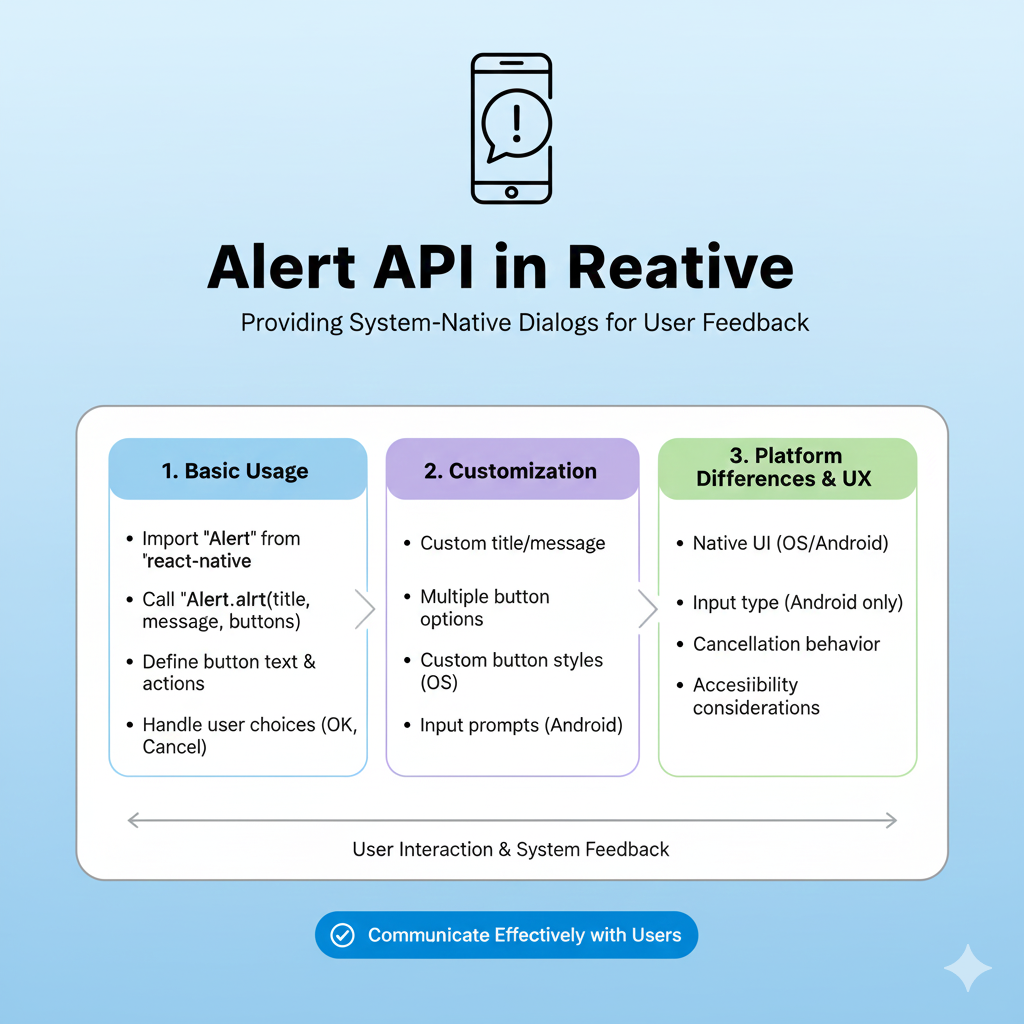
Master React Native Alert API with our in-depth guide. Learn platform-specific implementations, real-world examples, best practices, and common pitfalls. Elevate your mobile development skills today!
Transform simple notifications into powerful user experiences with React Native's most essential communication tool
Ever built a killer React Native app with slick animations and perfect navigation, only to realize your user notifications look like a 90s pop-up ad? You're not alone. The Alert API seems simple at first glance—just a popup with a message—but mastering it can make the difference between an app that feels native and professional versus one that feels clunky and amateurish.
What Exactly is React Native Alert API?
Think of React Native Alert as your app's emergency broadcast system—a native dialog that pops up to deliver urgent messages or ask for immediate decisions. Unlike push notifications that work outside your app, alerts are in-app communications designed to interrupt user flow for critical information.
The beauty of React Native Alert is its simplicity: a single function call that renders natively on both iOS and Android. You get platform-consistent behavior without writing separate code for each OS (well, mostly—we'll get to those quirks).
javascript
import { Alert } from 'react-native';

// The simplest alert possible
Alert.alert("Hey there!", "This is your first React Native alert!");
That's it. Two lines of code and you've got a functioning alert. But as any experienced developer knows, the devil—and the magic—is in the details.
Why Alerts Matter More Than You Think
Let's get real for a second. Alerts are often an afterthought in mobile development. We spend weeks perfecting animations and days tweaking color schemes, then slap together alerts in five minutes before shipping. This is a huge mistake.
Alerts represent critical decision points in your user experience. They're where users confirm irreversible actions (like deleting data), grant permissions, or receive error messages. A poorly implemented alert can:
Confuse users with unclear options
Frustrate them with poor button placement
Break immersion with inconsistent styling
Even cause data loss if actions aren't clearly distinguished
The React Native Alert API solves these problems by providing a consistent, native-looking interface that follows platform conventions automatically. On iOS, buttons follow Apple's Human Interface Guidelines; on Android, they adhere to Material Design principles.
The Anatomy of an Alert: Beyond "OK" Buttons
When you call Alert.alert(), you're working with up to four parameters:
javascript
Alert.alert(
  title,           // Required: The bold text at the top
  message,         // Optional: More detailed explanation
  buttons,         // Optional: Array of button configurations
  options          // Optional: Additional platform-specific settings
);
But let's talk about what makes alerts truly powerful: button configuration. Each button in your array is an object with several properties:
javascript
{
  text: "Delete",                    // What users see
  onPress: () => deleteItem(itemId), // What happens when tapped
  style: "destructive",              // iOS: makes text red for dangerous actions
  isPreferred: false                 // iOS: whether to emphasize this button
}
Here's a pro tip I learned the hard way: On iOS, the destructive style automatically colors your button red—a universal "danger" signal that users immediately recognize. On Android, this styling doesn't apply, but the button order convention does: positive actions typically go on the right.
Platform Differences: The Good, The Bad, and The Workarounds
React Native's "write once, run anywhere" promise hits a speed bump with alerts. Here's what you need to know:
iOS Exclusives You'll Wish Worked Everywhere
iOS gets the fancy features. The Alert.prompt() method lets you create alerts with text inputs—perfect for quick password confirmations or asking for names.
javascript
// This only works on iOS!
Alert.prompt(
  'Enter Password',
  'Please enter your password to continue.',
  (password) => {
    console.log('Password entered:', password);
  },
  'secure-text'
);
When you run this on Android? Silent failure. Nothing happens, and your users wonder if the app is broken.
Android's Quirks and Features
Android may lack prompts, but it has its own special sauce:
Cancelable dialogs: You can allow users to dismiss alerts by tapping outside the box
Three-button max: iOS lets you add as many buttons as you want; Android caps you at three (neutral, negative, positive)
Different button order: What's "OK" and "Cancel" on iOS might be reversed on Android
The Smart Developer's Solution
Instead of complaining about platform differences, work with them. Use Platform.OS checks to provide appropriate experiences:
javascript
import { Alert, Platform } from 'react-native';

const requestConfirmation = () => {
  if (Platform.OS === 'ios') {
    // Use the fancy prompt on iOS
    Alert.prompt(
      'Confirm Action',
      'Enter your password to proceed:',
      [{ text: 'Cancel', style: 'cancel' }],
      'secure-text'
    );
  } else {
    // Graceful fallback for Android
    Alert.alert(
      'Action Required',
      'Please navigate to settings to confirm this action.',
      [{ text: 'OK' }]
    );
  }
};
Real-World Examples That Actually Work
Let's move beyond toy examples. Here are production-ready patterns you can copy directly into your apps:
1. The Delete Confirmation (The Classic)
javascript
const showDeleteConfirmation = (itemName, onConfirm) => {
  Alert.alert(
    "Delete " + itemName,
    "This action cannot be undone. Are you absolutely sure?",
    [
      {
        text: "Cancel",
        style: "cancel",
        onPress: () => console.log("Deletion cancelled")
      },
      {
        text: "Delete",
        style: "destructive",
        onPress: onConfirm
      }
    ],
    { cancelable: false } // User MUST make a choice
  );
};
Why this works: The destructive style (iOS) or right placement (Android) visually separates the dangerous action. Making it non-cancelable forces intentionality.
2. The Permission Request (With Grace)
javascript
const requestNotificationPermission = () => {
  Alert.alert(
    "Enable Notifications",
    "Get updates about new features and content. You can change this anytime in settings.",
    [
      {
        text: "Not Now",
        style: "cancel",
        onPress: () => trackPermissionDenied()
      },
      {
        text: "Enable",
        onPress: () => {
          // Actually request system permission
          requestNotifications();
        }
      }
    ]
  );
};
Key insight: Always explain why you need permission before asking. Users are 2-3x more likely to grant permissions when they understand the value.
3. The Error Handler (That Doesn't Panic Users)
javascript
const showNetworkError = (retryCallback) => {
  Alert.alert(
    "Connection Lost",
    "We couldn't reach our servers. Check your connection and try again.",
    [
      { text: "Dismiss", style: "cancel" },
      {
        text: "Retry",
        onPress: retryCallback,
        isPreferred: true // iOS: bolds this option
      }
    ]
  );
};
Pro tip: For errors, always provide a recovery path. A simple "Retry" button transforms frustration into empowerment.
Common Pitfalls and How to Avoid Them
I've made every mistake in the book so you don't have to:
❌ Pitfall 1: Assuming alerts are modal
Actually, Alert.alert() is asynchronous. If you call it multiple times rapidly, alerts will stack. Solution: implement alert queuing or prevent multiple triggers.
❌ Pitfall 2: Forgetting about web
React Native for Web doesn't implement Alert at all. If you're building for web too, consider @blazejkustra/react-native-alert—a drop-in replacement that works everywhere.
❌ Pitfall 3: Overusing alerts
Not every message deserves an alert. Save them for:
Critical errors that block functionality
Permission requests
Destructive action confirmations
Essential information that affects current task
For less critical messages, use toasts, banners, or inline notifications instead.
❌ Pitfall 4: Ignoring accessibility
Screen readers navigate alerts differently. Ensure your:
Titles are descriptive (
"Delete confirmation"not"Confirm?")Button text is action-oriented (
"Save changes"not"OK")Alert makes sense without visual context
When to Upgrade to Custom Alerts
The built-in Alert API is fantastic for 80% of use cases. But when you need:
Custom styling that matches your brand
Complex layouts with images or forms
Advanced animations beyond the default fade
Absolute consistency across platforms
...it's time for a custom solution. Libraries like react-native-modal transform the basic Modal component into a powerhouse with timing controls, swipe gestures, and animation options.
The trade-off? More code and maintenance. Here's a quick comparison:
Feature | Native Alert | Custom Modal |
|---|---|---|
Development time | Minutes | Hours to days |
Styling control | Platform defaults | Complete control |
Content flexibility | Text only | Any React component |
Consistency | Platform-specific | Identical everywhere |
Bundle size impact | None | Additional library |
Rule of thumb: Start with native alerts, upgrade to custom only when you hit actual limitations.
Your Alert API Cheat Sheet
Bookmark this table for quick reference:
Scenario | Pattern | Key Props |
|---|---|---|
Simple notification |
| None needed |
Confirm action | Two buttons, second is |
|
Multiple choices | Up to 3 buttons (Android), unlimited (iOS) | Order: neutral, negative, positive (Android) |
iOS text input |
|
|
Non-dismissible | Add options parameter |
|
Handle dismissal | Android-only option |
|
Beyond the Basics: Advanced Patterns
Once you've mastered single alerts, try these advanced patterns:
Chained Alerts for Critical Actions
For extra-dangerous operations (like account deletion), use a confirmation sequence:
javascript
const deleteAccount = () => {
  Alert.alert(
    "Delete Account",
    "This will permanently remove all your data.",
    [
      { text: "Cancel", style: "cancel" },
      {
        text: "Continue",
        onPress: () => {
          // Second, more specific warning
          Alert.alert(
            "Final Warning",
            "This cannot be undone. Type DELETE to confirm.",
            [
              { text: "Go Back", style: "cancel" },
              {
                text: "Delete",
                style: "destructive",
                onPress: actuallyDeleteAccount
              }
            ]
          );
        }
      }
    ]
  );
};
Platform-Optimized Button Arrays
Use Platform.select() to create perfect button layouts for each OS:
javascript
const buttons = Platform.select({
  ios: [
    { text: "Cancel", style: "cancel" },
    { text: "Save", style: "default" },
    { text: "Delete", style: "destructive" }
  ],
  android: [
    { text: "Delete", style: "destructive" },
    { text: "Cancel", style: "cancel" },
    { text: "Save", style: "default" }
  ]
});
Frequently Asked Questions
Can I style React Native alerts?
Minimally. You get platform-native styling automatically. For full control, build a custom modal.
Why does Alert.prompt() crash on Android?
It doesn't crash—it silently does nothing because Android doesn't support it. Always check Platform.OS before using prompt().
How many buttons can I add?
iOS: As many as fit on screen. Android: Maximum of three.
Are alerts accessible?
Yes, they work with screen readers out of the box. Ensure your text is descriptive for full accessibility.
Can I show alerts from outside components?
Yes! Alert.alert() is a static method you can call from anywhere—Redux actions, utility functions, even outside React lifecycle.
The Future of Alerts in React Native
The React Native team continues to improve the Alert API. Recent additions include:
User interface style options on iOS (light/dark mode)
Better web support through community libraries
Improved TypeScript definitions for better developer experience
As React Native evolves, expect more consistency across platforms while maintaining native feel.
Conclusion: Alerts as Conversation, Not Interruption
Mastering the Alert API isn't about memorizing syntax—it's about understanding when and how to communicate with your users. Every alert should feel like a helpful conversation, not an annoying interruption.
Start simple with Alert.alert(), respect platform conventions, and upgrade to custom solutions only when necessary. Your users will thank you with higher engagement, fewer errors, and better overall experience.
Remember: Great apps don't just function well—they communicate well. And in React Native, the Alert API is your primary communication tool.
Want to build React Native apps that stand out? At CoderCrafter, we go beyond the basics. Our Full Stack Development and MERN Stack courses dive deep into practical patterns like these, teaching you not just how to code, but how to craft exceptional user experiences. Visit codercrafter.in today to transform from coder to crafter.









