Google Login in React Native: A 2025 Developer's Guide to Secure Authentication
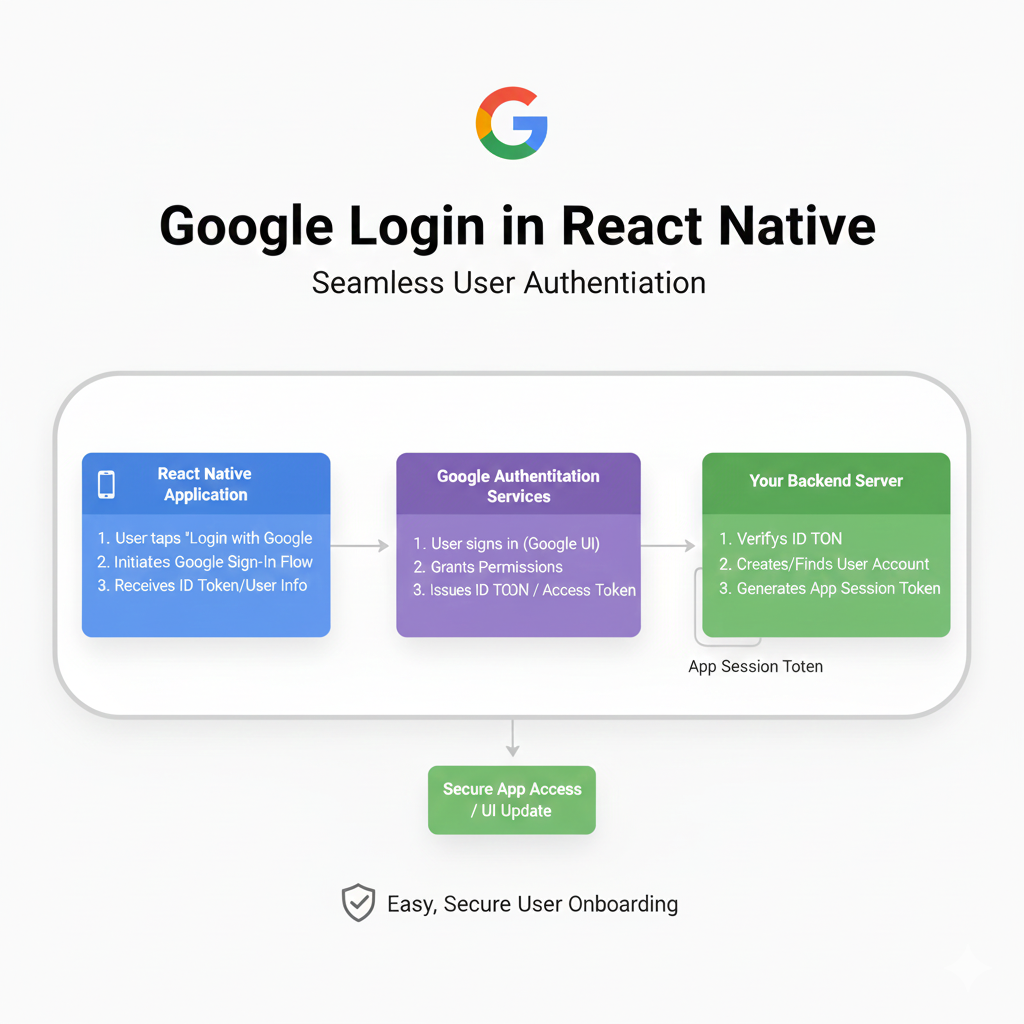
Master Google Login in React Native with Expo & Firebase. Step-by-step tutorial, code examples, best practices, and common pitfalls explained. Level up your app's auth game!
Google Login in React Native: Your No-Fluff Guide to Seamless Auth in 2025
Hey there, fellow devs! 👋 Let's talk about something we all need but sometimes dread setting up: authentication. Specifically, adding that slick "Sign in with Google" button to your React Native app. You know the one—it makes onboarding feel effortless and boosts your user sign-ups like crazy.
But between OAuth 2.0 flows, cryptic Firebase docs, and Expo quirks, it can feel like navigating a maze. Been there, felt that.
So, grab your favorite coffee (or chai! ☕), and let's break this down, step-by-step, without the jargon overload. We'll build a clean, secure Google Login, talk about the real-world "gotchas," and by the end, you'll have a working auth system you can plug into your project. Let's dive in.
Why Bother with Google Login Anyway?
Before we code, let's get our "why" straight. Building your own email/password auth system from scratch is like reinventing the wheel—and it's probably a square wheel with security holes.
Google Login gives you:
One-Click Sign-Up: Reduces friction. Users are 3x more likely to complete sign-up if they can use a social account.
Security You Can Trust: Google handles the heavy lifting of passwords, 2FA, and breaches. You get a verified email and profile info.
Less Data Liability: You're not storing sensitive passwords. It's a privacy win for users and a compliance win for you.
It's Just Standard: Users expect it. A login screen without it feels oddly retro in 2024.
The Toolkit: Choosing Your Weapons
You've got two main paths, and your choice depends on your project setup.
The Expo Ecosystem (The Fast Lane): If you're using Expo (and you probably should for most projects),
expo-auth-sessionwith Google is your best friend. It abstracts the native complexities. This is what we'll focus on primarily.The Bare React Native Path (More Control): If you're in a bare React Native project, you might reach for
@react-native-google-signin/google-signin. It's powerful but requires native linking and more setup.
For this guide, we're taking the Expo path. It's cleaner, faster, and covers 90% of use cases.
Let's Build: Step-by-Step Implementation
Prerequisites:
Node.js & npm/yarn installed.
An Expo project (
npx create-expo-app GoogleAuthDemo).A Google Cloud Project (don't worry, we'll do this together).
Step 1: Create Your Google Cloud Credentials
This is the most "admin-y" part. Follow closely.
Go to the Google Cloud Console.
Create a New Project (e.g., "My React Native App").
Navigate to APIs & Services > Credentials.
Click + CREATE CREDENTIALS > OAuth client ID.
For Application Type, select iOS or Android. You'll need to create one of each.
iOS: You'll need your Expo project's Bundle Identifier. Find it in your
app.jsonunderexpo.ios.bundleIdentifier. If it's not set, use something likecom.yourcompany.yourapp.Android: You'll need the package name (
expo.android.packageinapp.json) and your SHA-1 fingerprint. Getting the SHA-1 is tricky with Expo. The easiest way? Runexpo credentials:managerin your terminal or, during development, you can use the Expo Go-specific client ID (we'll note it in the code).
Crucial Note: For iOS, you must also add your app's URL scheme to the "Authorized redirect URIs" in the Google Cloud Console. It will look like your.bundle.identifier:/oauth2redirect/google. You can find this in your app.json under expo.scheme.
Step 2: Install the Expo Auth Package
In your project directory, run:
bash
npx expo install expo-auth-session expo-web-browserStep 3: The Core Code – Building the Login Screen
Create a file, say LoginScreen.js. Here's the meat of it, with comments explaining each part.
javascript
import React, { useEffect } from 'react';
import { Button, View, Text, Alert, StyleSheet } from 'react-native';
import * as WebBrowser from 'expo-web-browser';
import * as Google from 'expo-auth-session/providers/google';
import { ANDROID_CLIENT_ID, IOS_CLIENT_ID, WEB_CLIENT_ID } from './config'; // Keep secrets safe!

// This is needed for the auth flow to work properly in the browser.
WebBrowser.maybeCompleteAuthSession();

const LoginScreen = () => {
  // 1. Request for authentication
  const [request, response, promptAsync] = Google.useAuthRequest({
    androidClientId: ANDROID_CLIENT_ID,
    iosClientId: IOS_CLIENT_ID,
    expoClientId: WEB_CLIENT_ID, // This comes from your Expo project page
  });

  // 2. Handle the response AFTER the user completes the Google flow
  useEffect(() => {
    if (response?.type === 'success') {
      const { authentication } = response;
      // BINGO! You have an `authentication.accessToken`
      console.log("SUCCESS! Token:", authentication.accessToken);

      // 3. Use the token to fetch user info from Google
      fetchUserInfo(authentication.accessToken);
    } else if (response?.type === 'error') {
      Alert.alert("Login Failed", "Something went wrong. Please try again.");
      console.error("Auth Error:", response.error);
    }
  }, [response]);

  const fetchUserInfo = async (token) => {
    try {
      const response = await fetch('https://www.googleapis.com/oauth2/v3/userinfo', {
        headers: { Authorization: `Bearer ${token}` },
      });
      const user = await response.json();
      console.log("User Profile:", user); // { email, name, picture, sub (id) }
      Alert.alert(`Welcome, ${user.name}!`, `Logged in as ${user.email}`);
      // Here, you would typically send this data to your backend to create/login the user.
    } catch (error) {
      console.error("Failed to fetch user info:", error);
    }
  };

  return (
    <View style={styles.container}>
      <Text style={styles.title}>Welcome to My Awesome App</Text>
      <Text style={styles.subtitle}>Sign in to get started</Text>
      <Button
        title="Sign in with Google"
        disabled={!request}
        onPress={() => promptAsync()} // This opens the Google consent screen
      />
      {/* Pro Tip: Use a custom button with Google's logo for better UX */}
    </View>
  );
};

const styles = StyleSheet.create({
  container: { flex: 1, justifyContent: 'center', alignItems: 'center', padding: 20 },
  title: { fontSize: 24, fontWeight: 'bold', marginBottom: 10 },
  subtitle: { fontSize: 16, color: 'gray', marginBottom: 30 }
});

export default LoginScreen;
The Real-World Stuff: Connecting to Your Backend
Getting the token in your app is only half the battle. The secure and proper way is to send this access token to your own backend server.
Your backend then:
Verifies the token with Google's servers (using the
google-auth-libraryin Node.js, for example).Checks if a user with that Google ID (
user.sub) exists in your database.If not, creates a new user record.
Creates a session or a JWT token specific to your app and sends it back to the React Native app.
This keeps your app's interaction with Google limited and puts your server in control of authentication.
To learn professional software development courses that dive deep into building secure backend systems like this, using Python Programming, Full Stack Development, and MERN Stack, visit and enroll today at codercrafter.in. Master the complete flow from frontend buttons to backend security.
Common Pitfalls & Best Practices (The "Gotchas" List)
"redirect uri mismatch" Error: This is the #1 headache. Triple-check your client IDs, bundle identifiers, and redirect URIs in the Google Cloud Console and your
app.json. They must match exactly.Using Expo Go for Testing: In development, you must use the
expoClientIdfrom your Expo project dashboard. Production builds will use the native (iosClientId/androidClientId) ones.State Parameter:
expo-auth-sessionautomatically manages the OAuthstateparameter to prevent CSRF attacks. Don't disable this.Design Matters: Don't use the default blue
Button. Style aTouchableOpacitywith Google's brand colors and logo. It increases trust and click-through rates.Handle the "Cancel" Flow: What if the user hits the back button on the Google consent screen? Ensure your app doesn't crash and returns them gracefully to the login screen.
Always Have a Fallback: Offer an alternative sign-in method (email/password or phone). Not everyone uses Google.
FAQs: Quick Fire Round
Q: Can I use this in a production app?
A: Absolutely. The Expo modules are production-ready. Just ensure you switch to your native client IDs for production builds (using EAS Build or similar).
Q: What user data do I get?
A: By default, you get the user's profile (email, name, picture, and a unique Google ID). You can request additional "scopes" for access to Google Drive, Calendar, etc., but only ask for what you need.
Q: My app runs on Web too. Can I use this?
A: Yes! expo-auth-session works for React Native Web. You'll configure the webClientId and a web redirect URI (like your site's homepage).
Q: How do I log the user out?
A: For Google OAuth, "logging out" usually means disconnecting your app's access. You can call Google's revoke endpoint with the token, but more commonly, you simply delete the session/token from your app's state and backend. The user will remain logged into their Google account elsewhere.
Wrapping It Up
Adding Google Login to your React Native app isn't just a feature—it's a user experience upgrade. It removes a huge barrier to entry and makes your app feel modern and trustworthy.
Remember the flow:
Set up Google Cloud credentials (carefully!).
Use
expo-auth-sessionto get an access token on the frontend.Send that token to your backend for verification.
Create/manage your own user session.
It might seem like a few steps now, but once you've done it, it's a pattern you can replicate for other providers (Apple, Facebook) in no time.
Feeling confident? Go ahead and implement it. Hit a snag? The React Native and Expo communities are incredibly active—chances are, someone has already solved your issue.
And if you want to move from implementing features like this to architecting full-scale applications, understanding the backend security, and mastering the entire software development lifecycle, that's where structured learning makes all the difference. To go from a coder to a Craftsman, explore the professional software development courses such as Python Programming, Full Stack Development, and MERN Stack at codercrafter.in. Enroll today and start building production-ready applications.
Now go forth and build those seamless login experiences!
Got questions or your own pro-tips on React Native auth? Drop a comment (on the original blog post) – let's learn together!









