Build 3D Animations in React Native (2025 Guide) | Examples & Code
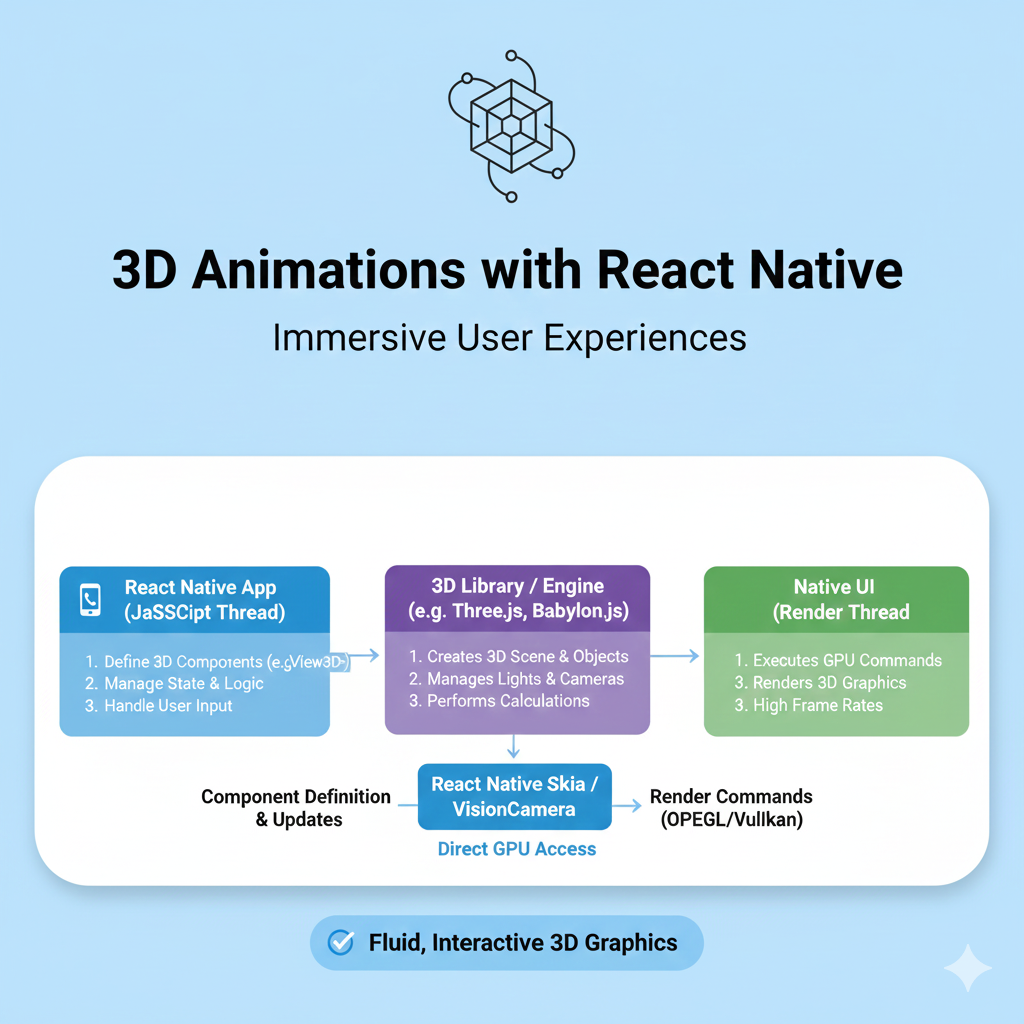
Learn to create immersive 3D animations in React Native. Step-by-step guide with code for interactive 3D cubes & models using react-three-fiber & Reanimated.
Picture this: You're building an e-commerce app. A customer can't just see the new sneaker; they can spin it, zoom in on the stitching, and see how the light hits the material—all from their phone. That's not science fiction. It's the power of 3D animation in React Native, and in 2025, it's the secret weapon for apps that don't just function, but fascinate.
Let's get real. The app stores are flooded. To stand out, you need to offer an experience, not just another interface. 3D animations provide that "wow" factor—transforming static screens into interactive, immersive worlds. Whether it's a game, a product configurator, or an educational tool, a well-executed 3D feature creates a memorable connection that flat designs simply can't match.
This guide will cut through the complexity. We'll explore the "why," unpack the "how" with practical code, and look at the real-world tools and strategies to make your React Native app truly dimensional.
Why Go 3D? It's More Than Just Looking Cool
Before we dive into code, let's talk strategy. Why invest the extra effort?
Unbeatable Engagement: A 3D model is inherently interactive. Users control the view, creating a sense of exploration and ownership that static images can't provide.
Clarity Through Visualization: For complex products—think custom furniture, car parts, or intricate gadgets—a 3D model reveals details more effectively than a dozen 2D photos. It reduces uncertainty and can significantly boost customer confidence.
The Premium Feel: Let's not sugarcoat it—smooth, integrated 3D looks sophisticated. It instantly signals that your app is modern, high-quality, and worth the user's time.
Future-Proof Skills: As AR and immersive tech become mainstream, understanding 3D principles in a mobile context is a hugely valuable skill for any developer.
Your 3D Toolkit: The 2025 Library Stack
React Native doesn't do 3D natively. You need to bring in specialized libraries. Think of them as your crew for building this new world.
Library | Role & Vibe | Best For... |
|---|---|---|
| The power duo. R3F is a React renderer for Three.js (the king of web 3D), letting you write 3D scenes with familiar JSX. | Complex, custom scenes where you need total control over objects, lighting, and camera. |
React Native Reanimated | The performance engine. Runs animations on the native UI thread (not JavaScript), guaranteeing buttery-smooth 60 FPS motion crucial for 3D. | Driving any animation, especially when combined with gesture control for 3D object manipulation. |
React Native Gesture Handler | The interaction specialist. Provides superior, native-grade control over touch gestures like pans, pinches, and rotations. | Making your 3D objects respond seamlessly to user swipes and drags. |
| The simple viewer. A straightforward wrapper to display 3D model files with minimal setup. | Quickly adding a "View in 3D" feature without building a full custom scene. |
For most ambitious projects, the combo of react-three-fiber, Reanimated, and Gesture Handler is the gold standard.
Hands-On: Build a Gesture-Controlled 3D Cube
Enough theory—let's build something you can touch! We'll create a 3D cube that auto-rotates and can be spun with a finger drag.
Step 1: Set Up Your Project
Start a new Expo project and install the essential tools:
bash
npx create-expo-app My3DApp
cd My3DApp
npx expo install three @react-three/fiber/native @react-three/drei react-native-gesture-handler react-native-reanimated
Follow the setup instructions for Reanimated and Gesture Handler, which typically involve adding a Babel plugin and linking native files.
Step 2: The Code (App.js)
Here’s the complete component to bring your 3D cube to life:
javascript
import React, { useRef } from 'react';
import { View, StyleSheet } from 'react-native';
import { Canvas } from '@react-three/fiber/native';
import { useFrame } from '@react-three/fiber/native';
import { GestureHandlerRootView, PanGestureHandler } from 'react-native-gesture-handler';
import Animated, { useAnimatedGestureHandler, useSharedValue, withSpring } from 'react-native-reanimated';

// 1. Our 3D Cube Component
function InteractiveCube(props) {
  const meshRef = useRef(null);

  // This hook runs on every single frame (60 times per second!)
  useFrame((state, delta) => {
    if (meshRef.current) {
      // Continuous auto-rotation around the Y-axis
      meshRef.current.rotation.y += delta * 0.5;
      // Apply gesture-based rotation from props
      meshRef.current.rotation.x = props.animatedRotationX.value;
      meshRef.current.rotation.y += props.animatedRotationY.value;
    }
  });

  return (
    <mesh ref={meshRef}>
      <boxGeometry args={[1, 1, 1]} /> {/* Size: width, height, depth */}
      <meshStandardMaterial color="#6C63FF" roughness={0.4} metalness={0.6} />
    </mesh>
  );
}

export default function App() {
  // 2. Shared values for gesture-driven rotation (Reanimated)
  const rotationX = useSharedValue(0);
  const rotationY = useSharedValue(0);

  // 3. Gesture Handler Configuration
  const gestureHandler = useAnimatedGestureHandler({
    onActive: (event) => {
      // Map finger drag distance to rotation angle
      rotationY.value = withSpring(event.translationX / 150);
      rotationX.value = withSpring(-event.translationY / 150); // Negative for natural direction
    },
    onEnd: () => {
      // Smoothly spring back to neutral when user lets go
      rotationY.value = withSpring(0);
      rotationX.value = withSpring(0);
    },
  });

  // 4. The Main App Render
  return (
    <GestureHandlerRootView style={{ flex: 1 }}>
      <View style={styles.container}>
        <PanGestureHandler onGestureEvent={gestureHandler}>
          <Animated.View style={styles.container}>
            <Canvas>
              {/* Lighting is crucial to see 3D form! */}
              <ambientLight intensity={0.6} />
              <spotLight position={[5, 10, 5]} angle={0.25} penumbra={1} intensity={2} />

              {/* Our cube, placed at the center of the scene */}
              <InteractiveCube
                animatedRotationX={rotationX}
                animatedRotationY={rotationY}
                position={[0, 0, 0]}
              />
            </Canvas>
          </Animated.View>
        </PanGestureHandler>
      </View>
    </GestureHandlerRootView>
  );
}

const styles = StyleSheet.create({
  container: {
    flex: 1,
    backgroundColor: '#111',
  },
});
What's Happening Here?
<Canvas>: This is your 3D stage fromreact-three-fiber. Everything inside exists in 3D space.<InteractiveCube>: A custom component defining a 3D mesh with a box geometry and a metallic-purple material.useFrame: The magic hook that lets you update the scene on every rendered frame—perfect for continuous animation.Gesture Pipeline: The
PanGestureHandlercaptures the user's drag.useAnimatedGestureHandlertranslates that drag into rotation values. These values are passed to the cube, which uses them in itsuseFramelogic to update its rotation in real-time.
Leveling Up: From a Cube to a Real-World Shoe
Let's say you want to display an actual product, like a 3D model of a sneaker. The principles are the same, but instead of a primitive <boxGeometry>, you'll load an external model file (like .obj or .glb).
The core process involves:
Loading the Model: Using Three.js loaders (
OBJLoader,MTLLoader) withinreact-three-fiber'suseLoaderhook.Adding Realism: Applying texture images for color, surface detail (normal maps), and shininess (roughness maps).
Advanced Interaction: You can even hook the model to the device's gyroscope using Reanimated's
useAnimatedSensor. This lets the shoe rotate as the user physically moves their phone, creating a stunning "augmented reality-lite" effect.
javascript
// Simplified example of gyroscope integration
import { useAnimatedSensor, SensorType } from 'react-native-reanimated';

function Shoe(props) {
  const meshRef = useRef();
  const animatedSensor = useAnimatedSensor(SensorType.GYROSCOPE, { interval: 100 });

  useFrame((state, delta) => {
    if (meshRef.current) {
      let { x, y } = animatedSensor.sensor.value;
      // Use gyroscope data to subtly rotate the model
      meshRef.current.rotation.x += x / 1000;
      meshRef.current.rotation.y += y / 1000;
    }
  });
  // ... model loading logic
}
Real-World Apps Doing This Today
This isn't just tutorial territory. Major companies use these exact techniques:
E-Commerce: IKEA Place lets you visualize furniture in your home. Nike uses 3D models for sneaker previews.
Gaming & Social: Character viewers, interactive inventories, and immersive story elements.
Education: Apps allow students to explore 3D models of molecules, historical artifacts, or anatomical parts.
Automotive: Build-and-price configurators for cars are classic 3D use cases.
Mastering these skills puts you at the forefront of modern app development. To learn the professional full-stack skills that power the backends of such immersive applications—like Python Programming, Full Stack Development, and the MERN Stack—visit and enroll today at codercrafter.in.
Best Practices: Keeping Your 3D App Smooth
With great visual power comes great performance responsibility.
Optimize Your Assets: This is rule #1. Use low-polygon models, compress textures, and prefer efficient formats like
.glb(binary glTF).Lazy Load Everything: Don't load heavy 3D models until the user absolutely needs to see them. Use conditional rendering and suspense boundaries.
Mind the Thread: Leverage Reanimated to run animation logic on the native thread, keeping the JavaScript thread free for your app logic.
Test on Real Hardware: Always test performance on a mid-range physical device, not just the powerful simulator on your Mac or PC.
FAQ: Your 3D Questions, Answered
Q: Do I need to be a 3D artist?
A: Not at all! You can find thousands of free, ready-to-use models on sites like Sketchfab or TurboSquid. For custom work, you can collaborate with a 3D artist or learn the basics of Blender (a free, powerful 3D tool).
Q: Will 3D make my app huge?
A: It can, if you're not careful. A single optimized model can be just a few hundred KB. The key is asset optimization and using CDNs for delivery.
Q: Is it worth the complexity for my app?
A: Ask yourself: Will 3D add meaningful value—better understanding, higher engagement, or a key differentiating feature? If yes, then the investment pays off.
The Future is Spatial
Adding 3D to your React Native app is no longer a daunting, niche task. With libraries like react-three-fiber and Reanimated, it's an accessible superpower. You start with a rotating cube, progress to a gyro-controlled product viewer, and before you know it, you're building the kind of immersive, interactive experiences that define the next generation of mobile apps.
The door to the third dimension is open. Your job is to build what's on the other side.









