Git for Normal People: A Complete Step-by-Step Tutorial for 2026
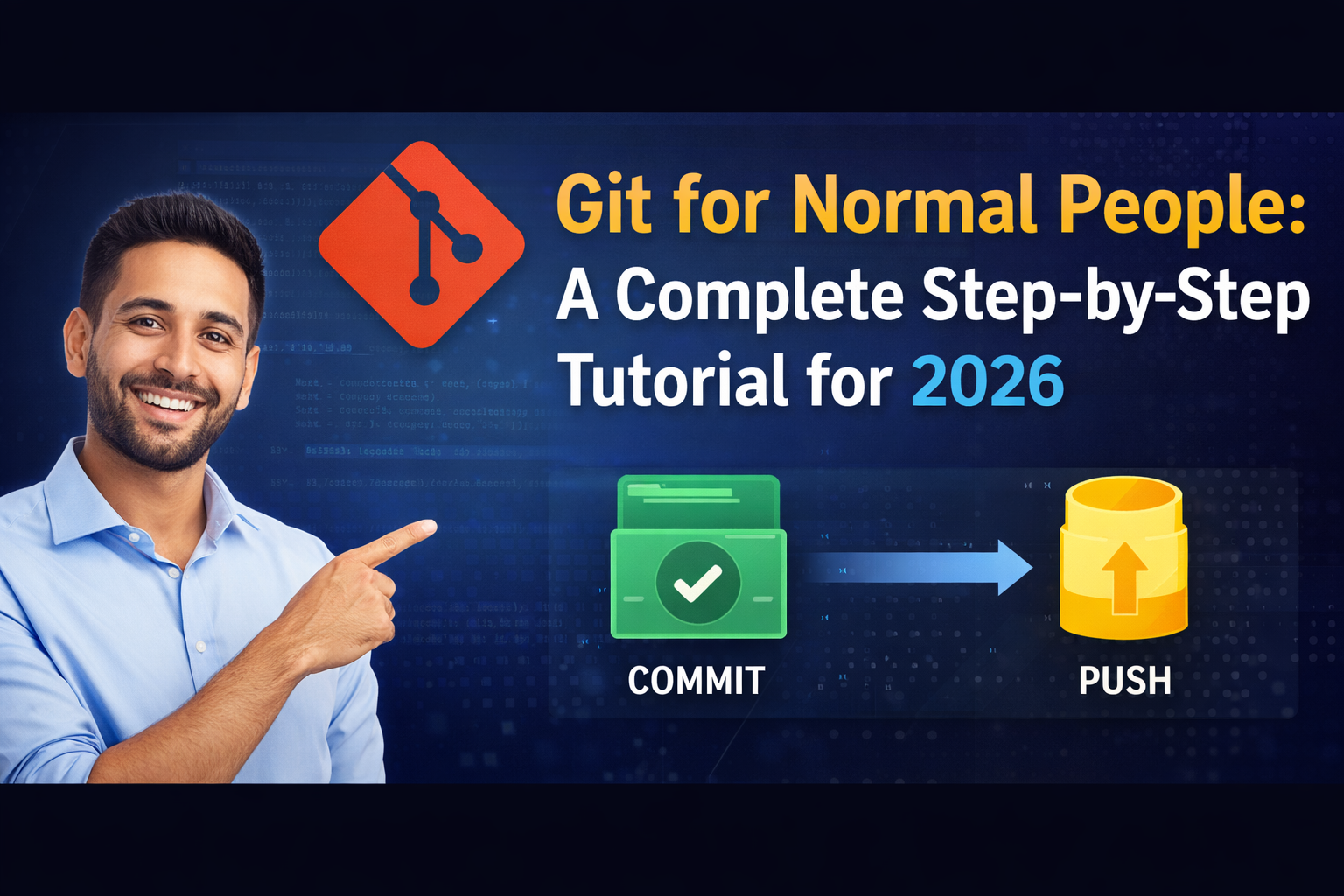
Master Git in 2026 with this beginner-friendly tutorial. Learn version control basics, commits, branching, and GitHub using simple, everyday language. No jargon!
Hey there! So, you’ve heard about this thing called Git. Maybe your friends at work or in college keep mentioning it, or you saw it on a job description and got a little nervous. You might be thinking, "Isn't that a complicated thing for programmers only?"
The short answer is: no! While it’s a superpower for developers, at its heart, Git is just a tool to help you stop losing your work and manage your projects better. Think of it like a "save game" feature for any folder on your computer, but on steroids.
Welcome to your friendly, no-jargon guide to Git in 2026. By the end of this, you won’t be an expert, but you’ll understand the flow well enough to use it with confidence. Let’s dive in.
Part 1: What on Earth is Git and Why Should I Care?
Imagine you’re writing a big school report or working on a creative project. You probably have folders on your computer that look like this:
Thesis_Final.docThesis_Final2.docThesis_Final_ActuallyFinal.docThesis_Final_FINALv3_ForReal.doc
We’ve all been there. You’re terrified of losing your good work, so you make a million copies. It’s messy, confusing, and takes up space.
Git is the cure for that nightmare.
Git is what’s called a "Version Control System." In simple terms, it’s a program that watches your project folder and takes snapshots of it. Whenever you feel like you’ve made a decent amount of progress—like finishing a chapter or getting a feature to work—you tell Git to take a "snapshot." In Git language, that snapshot is called a commit.
The Magic of Git
The Time Machine: Made a huge mistake an hour ago? No problem. You can rewind your project back to any snapshot you took. It’s like having a rewind button for your files.
The "What If?" Playground: Want to try a crazy new idea but afraid of messing up your perfect work? Git lets you create a branch—basically a separate timeline—to experiment in. If it works, you can merge it back into your main project. If it fails, you just delete it, and your main project is untouched.
The Team Player: If you’re working with friends, Git helps you merge everyone’s work together without accidentally deleting each other’s stuff.
Git vs. GitHub (A Major Point of Confusion)
This is super important. People use the words interchangeably, but they are different:
Git is the tool that runs on your computer. It does all the snapshot and time-travel magic locally.
GitHub (or GitLab or Bitbucket) is a website where you can upload a copy of your Git project. It’s a backup and a way to share your work with others.
Think of Git as your phone’s camera, and GitHub as Instagram. The camera takes the photos (commits), and Instagram is where you share the album with the world.
Part 2: Getting Git on Your Machine (It’s Easy!)
Before we can start taking snapshots, we need to install the camera. Don't worry, it's free and simple.
For Windows:
Go to the official Git website (
git-scm.com).Download the Windows installer. Run it.
You can basically click "Next" through all the default options—they are perfect for beginners. One screen might ask about the default editor; VS Code is a great choice if you have it, but Nano or Vim are fine too (just know Vim is tricky to exit!).
Once done, open the Start Menu and search for "Git Bash." This is a special terminal that lets you use Git commands on Windows.
For Mac:
The easiest way is to open your Terminal app.
Type
git --versionand hit Enter. If you don’t have it, your Mac will pop up a window asking if you want to install the "Xcode Command Line Tools." Click "Install," and it will put Git on your computer.
For Linux:
You’re probably already a terminal pro. Use your package manager. For Ubuntu or Debian, type:
sudo apt update
sudo apt install git
Introduce Yourself to Git
Once installed, open your terminal (or Git Bash on Windows). Git needs to know who you are so it can label your snapshots correctly. Type these two commands, hitting Enter after each one:
git config --global user.name "Your First and Last Name"
git config --global user.email "your-email@example.com"
Don't worry, this just stamps your commits with your name. It doesn't send your email to anyone unless you share your project online.
Part 3: Your Very First Git Project (A Recipe Tutorial)
Let’s stop talking and actually use it. We’re going to turn a simple folder into a Git repository (a "repo").
Imagine you’re writing down your famous guacamole recipe.
Create your project folder. On your Desktop, create a new folder called
My_Guacamole.Open that folder in a terminal. This is the trickiest part for beginners. You need to navigate to your folder.
Open your terminal/Git Bash.
Type
cd Desktop/My_Guacamoleand press Enter. If you’re on Windows, the path might becd C:\Users\YourName\Desktop\My_Guacamole.
Initialize the repo. Now type the magic command:
git initYou should see a message like Initialized empty Git repository in... . That’s it! You’ve just told Git to start watching this folder. You’ll notice there’s now a hidden folder called .git inside your My_Guacamole folder—that’s where Git keeps all its notes. Don't touch it!
Create a file. Inside your
My_Guacamolefolder, create a simple text file calledingredients.txt. Open it and type:
Avocados
Lime
Onion
Salt
Save it.
Check the status. Go back to your terminal and type:
git statusGit will tell you, "Hey, I see you have a new file called ingredients.txt, but I'm not tracking it yet." It will show up in red as "Untracked files."
Stage the file (The "Prep Area"). Git has this concept of a "Staging Area" (or "index"). It’s like a tray where you put ingredients before you actually cook them. You have to tell Git exactly which files you want in the next snapshot.
git add ingredients.txtNow run git status again. The file will turn green, showing it's "staged" and ready to be committed.
Take the snapshot (Commit). Now we "cook" it—we save it to the history.
git commit -m "Add list of ingredients"The -m stands for "message." This is your note to your future self explaining what you did. Always write clear messages!
Congratulations! You just made your first commit! 🎉
Part 4: The Git Lifecycle (Making More Changes)
So you have your first snapshot. Let’s keep going to understand the rhythm.
Modify a file. Open
ingredients.txtand add a new line:Cilantro. Save it.Check the diff. Want to see exactly what you changed? In the terminal, type:
git diffIt will show you the lines you added (with a +) and removed (with a -). It’s Git’s way of showing you the edit.
Stage the change. Just like before, we need to add it to the tray.
git add ingredients.txtIf you run git diff now, it will show nothing. That's because git diff compares your working folder to the staging area. To see what’s staged and ready to commit, you can use git diff --staged.
Commit the change.
git commit -m "Add cilantro for freshness"You are now in the flow: Edit File -> git add -> git commit -m "message". This is the core of using Git.
Part 5: The Time Machine (git log and git checkout)
Now for the really cool part. Let’s look at the history we’ve built.
View the history.
git logYou’ll see a list of your commits. Each one has:
A long, crazy commit hash (like
aa243eaf7c3f92b0f...). This is the unique ID for that snapshot.The Author (you!).
The Date.
The commit message you wrote.
To see a simpler, one-line version, use:
git log --onelineGo back in time.
Let’s say you regret adding Cilantro (some people hate it!). You want to go back to the very first snapshot.
Copy the commit hash of your first commit (the one with "Add list of ingredients") from the log. It might look likeaa243ea.
git checkout aa243ea(Replace aa243ea with your actual hash).
Look! Your ingredients.txt file no longer has "Cilantro" in it. Your computer’s files have physically changed to match that old snapshot. Git will warn you that you are in a 'detached HEAD' state. Don't panic! It just means you're looking at the past.
Come back to the present.
To go back to your latest version (the "present"), just type:
git switch -Or, if that doesn't work, you can always check out the main branch (which is the default timeline): git switch main (or git switch master on older systems).
Part 6: Branching: Your "What If?" Superpower
This is where Git becomes a game-changer. Let’s say you want to experiment with adding mango to your guacamole (controversial, I know). You don't want to mess up your perfect original recipe while you try this out. So, you create a branch—a separate timeline.
Create a new branch. Make sure you are on your
mainbranch first.
git branch mango-experimentThis creates a new branch called mango-experiment.
Switch to that branch.
git switch mango-experiment(Pro tip: You can do steps 1 and 2 in one line: git switch -c mango-experiment).
Experiment freely. You are now on your new branch. Open
ingredients.txtand addMango - 1/2 cup, diced. Save it.Commit your experiment.
git add ingredients.txt
git commit -m "Try adding mango for sweetness"
You have now diverged history. Your main branch has the original recipe, and your mango-experiment branch has the fruity version.
Switch back to the safe version.
git switch mainPoof! Your ingredients.txt file is back to the original recipe. The mango is gone from the file, but it’s safely saved in the mango-experiment branch.
Merge it back (if you like it). If you taste-test and decide the mango is a winner, you can merge that branch back into your main recipe.
First, make sure you are on the branch you want to merge into (the
mainbranch):git switch mainThen, tell Git to merge in the experiment:
git merge mango-experimentGit will take the changes from the mango-experiment branch and add them to your main branch. Now your main recipe includes mango!
Part 7: Sharing Your Work with GitHub
All of the above happened on your own computer. To back it up or share it, we need to introduce GitHub.
Go to GitHub.com and sign up for a free account.
Create a new repository. Click the "+" icon in the top right and click "New repository."
Give it a name. Call it
My_Guacamole. Don't check any boxes (like "Add a README"). Click "Create repository."Link your local project to GitHub. GitHub will show you a page with commands. You’re looking for the section that talks about "…or push an existing repository from the command line." It will look like this:
git remote add origin https://github.com/your-username/My_Guacamole.git
git branch -M main
git push -u origin main
Copy and paste those three commands one by one into your terminal.
The first command tells your local Git where the online home is.
The second command ensures your main branch is named
main.The third command
git pushuploads your commits to GitHub.
Refresh your GitHub page. You’ll see all your files and commit history sitting safely in the cloud!
Later, if you make more changes and want to upload them, the workflow is simple: git add . (the dot means "add all changes"), git commit -m "your message", and then git push.
Part 8: Handling Oops Moments (Stash and Friends)
Real life happens. Sometimes you’re in the middle of editing a file, but you get an urgent message to fix a bug on the main branch. You can’t switch branches with half-finished work.
The quick fix: Stash it.
git stashThis takes all your uncommitted changes, saves them away for later, and cleans your folder back to the last commit. You can now switch branches safely.
When you’re ready to go back to your work:
git stash popAnd your work-in-progress magically reappears.
Conclusion: You’re Not a Normal Person Anymore
You’re now a Git user. You know how to take snapshots (commit), view your history (log), go back in time (checkout), experiment safely (branch), and back up your work (push).
Forget the _FINALv3 folders. From now on, your projects will be organized, safe, and professional. The commands might feel a bit strange at first, but stick with it. In a week, they’ll be as natural as "Ctrl+S."
Happy coding (or writing, or designing, or whatever you’re creating)!